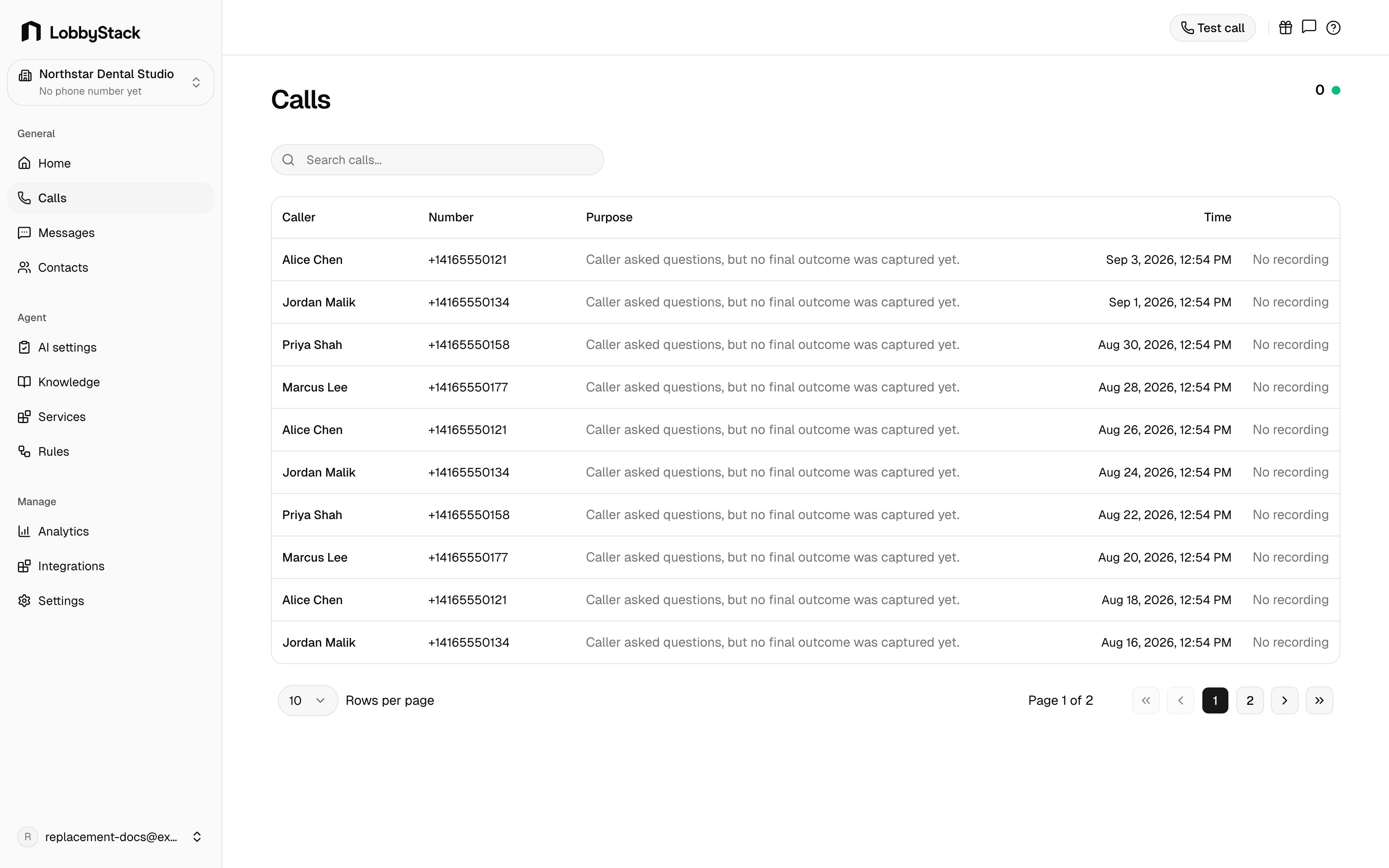
The Calls page is your complete record of every inbound call handled by your LobbyStack receptionist. Each row shows the caller’s name or number, a one-line purpose summary, and the date and time of the call. You can search across all calls and play recordings inline without leaving the list.
All plans include unlimited call history. Your full call log is always available, with no rolling deletion window unless you configure a custom data retention policy.

What the Calls page shows

Each row in the call list includes:
  • Caller — the contact name if LobbyStack recognized the caller, or “Unknown caller” for first-time callers
  • Number — the caller’s phone number in local format
  • Purpose — a one-line outcome summary: a booked appointment, a message taken, a transfer result, or a transcript preview when no structured outcome was captured
  • Time — the date and time the call started
  • Play button — appears when a recording is available; click to start playback inline
A live indicator in the page header shows how many calls are in progress right now.

Search and filter calls

Use the search bar at the top of the Calls page to find a specific call. The search matches against caller name, phone number, and the purpose summary. Results update as you type.

Open a call detail view

Click any row to open the full detail view for that call. The detail view has three tabs: Transcript, Recording, and Details.

Transcript tab

Every call includes a full word-for-word transcript of the conversation between your receptionist and the caller. Messages from the caller appear on the left; responses from your AI receptionist appear on the right.

Recording tab

If call recording is enabled for your account, the Recording tab shows an audio player with play, pause, and download controls. The player displays the call duration and lets you scrub to any point in the recording.
Call recording is off by default. To enable it, go to ReceptionistCall handling rules and turn on call recording. Recordings are stored securely and subject to your data retention settings.
If recording is enabled but the audio is still processing, the tab shows a “pending” message. If recording was not enabled when the call occurred, the tab indicates the recording is unavailable.

Details tab

The Details tab shows call metadata and any follow-up task the receptionist created:
  • Follow-up task — if the caller left a message or a task was flagged, it appears here with a title and notes. You can mark it as done directly from this tab.
  • Call duration — the total length of the call
  • Call ID — the internal identifier for the call, useful if you contact support

Call timeline

Below the metadata row, each call detail view includes a visual timeline of call events: received, connected, transferred (if applicable), and completed or failed. Each step shows a timestamp and a status indicator.

Play a recording from the list view

You can play a recording without opening the detail view:
1

Find the call in the list

Scroll or search for the call you want to hear.
2

Click the play button

The play button appears in the rightmost column if a recording is available. Click it to start playback.
3

Use the audio player

A player bar appears at the top of the page. Use it to pause, resume, or download the recording. Clicking the play button again pauses playback.

Call outcomes explained

The Purpose column summarizes what happened on each call:

Appointment booked

The caller selected a service and time. The summary shows the service name and start time.

Message taken

The caller left a message. The summary shows the message content.

Transfer completed

The call was transferred to your team. The summary shows the transfer result.

No structured outcome

A transcript preview is shown when the call did not result in a booking, message, or transfer.