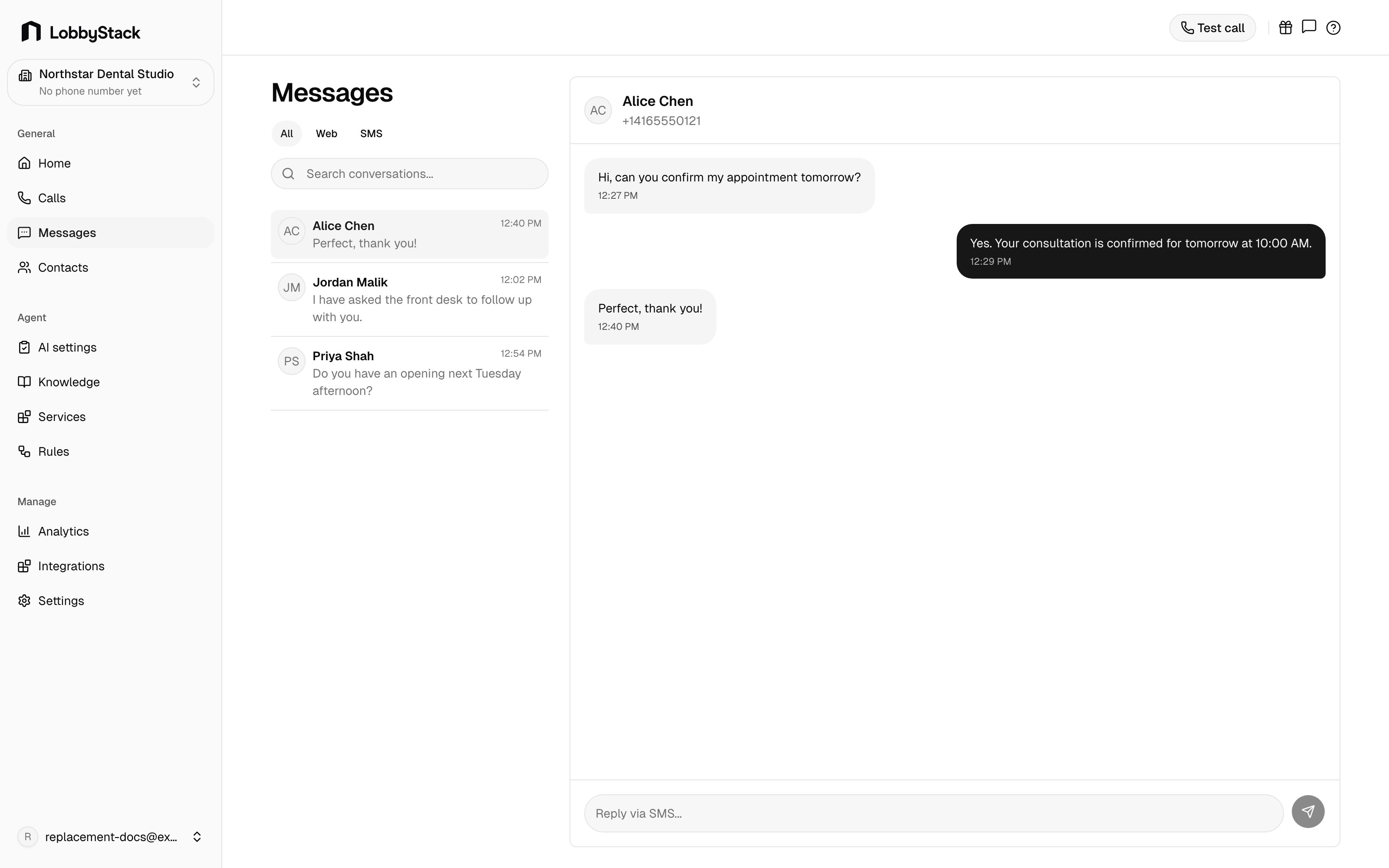
The Messages page shows every SMS conversation linked to your LobbyStack number. This includes alert messages sent to you after calls and two-way SMS threads where your AI receptionist has been texting callers directly. You can read any conversation, send a reply yourself, and switch a thread between AI-handled and manual mode.

Two types of messages

LobbyStack creates SMS conversations in two ways:
  • Alert SMS — after every call, LobbyStack sends a structured summary to your number with the caller’s name, intent, and any notes. These appear as inbound messages in the conversation list.
  • Two-way AI SMS — if you have the SMS add-on enabled, your AI receptionist can carry on a full text conversation with a caller: answering questions, booking appointments, or collecting information. These appear as threaded conversations with both inbound and outbound messages.
Two-way SMS requires the SMS add-on. See Set up two-way SMS to enable it and connect your messaging number.

The conversation list

The left panel shows all your conversations, sorted by most recent activity. Each item displays:
  • Contact name or number — the caller’s name if they are a known contact, or their phone number
  • Channel indicator — a small icon shows whether the conversation is SMS or web
  • Last message preview — the most recent message text, or a label like “Photo” or “Document” if the last message was an attachment
  • Timestamp — how long ago the last message arrived
Use the search bar at the top of the panel to filter conversations by contact name, phone number, email address, or message content.

Read a conversation thread

Click any conversation in the list to open the thread. Messages from the caller appear on the left and messages from your receptionist or your team appear on the right. Between sessions, a divider shows a session summary — the outcome of the call or SMS session that led to this set of messages. Click the divider to expand or collapse the summary.

Send a reply manually

For SMS conversations, you can send a message directly from the Messages page:
1

Select the conversation

Click the conversation you want to reply to in the left panel.
2

Type your message

Click the text input at the bottom of the thread and type your reply.
3

Add attachments (optional)

Click the + button to attach a file. You can attach up to 3 files per message. Supported types include images (JPEG, PNG, GIF, HEIC) and documents (PDF, Word, Excel, CSV). Attachments are delivered by MMS or as a download link, depending on the file type.
4

Send

Press the send button or hit Enter. Your message is sent immediately and appears in the thread.
You can only send messages in SMS conversations. Non-SMS channels show the thread as read-only.

Switch between AI and manual mode

By default, your AI receptionist handles replies in two-way SMS conversations. If you want to take over a thread yourself, you can pause the AI for that conversation:
1

Open the conversation

Select the thread in the conversation list.
2

Click the automation toggle

In the thread header, click the Take over button to switch to manual mode. A yellow banner appears in the thread confirming that AI automation is paused and showing who paused it.
3

Resume AI when done

When you are finished replying, click the same button again to hand the thread back to your AI receptionist. The banner disappears and the AI resumes handling new messages.
Switching to manual mode is useful when a situation needs a personal touch or when you want to follow up on a specific caller directly. The AI picks back up exactly where it left off when you resume.

Blocked contacts

If a contact has been blocked, their conversation thread shows a red banner. You cannot send messages to blocked contacts. To unblock a contact, go to Contacts and open their profile.

View attachments

Images in a conversation display as inline previews. Click an image to open it full size or download it. Document attachments appear as file cards with the file name and size. Click the download icon to save the file.